Polipac – Google Slide Template for Versatile Business and Creative Presentations
Presentations often determine how an idea is received. Whether you're pitching a new product, presenting quarterly results, or building a portfolio, the visual foundation matters. Polipac – Google Slide Template offers a clean, scalable, and colorful framework designed to help you communicate clearly without spending hours on design. It's not just another slide deck — it's a practical tool that adapts to real-world needs.
After working with templates for various projects — from startup pitch decks to internal training materials — I've found that flexibility and ease of use are what separate a helpful template from a frustrating one. Polipac delivers on both fronts. Let's explore what makes it stand out, how it works, and where it fits best.
What Is Polipac – Google Slide Template?
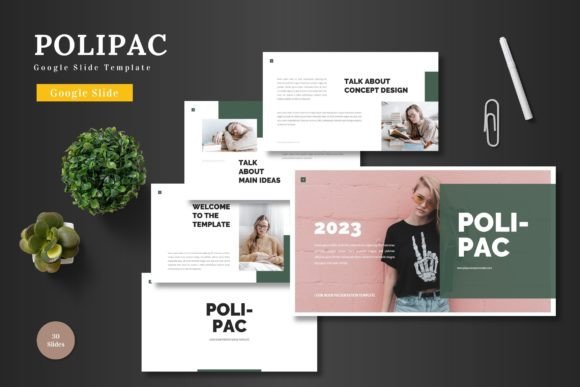
Polipac is a Google Slides template built for professional and personal use. It includes 150 total slides across 5 pre-made color schemes, with 30 slides per color variation. Each set comes with section break slides, handcrafted infographics, and pixel-perfect illustrations. The template is fully editable directly within Google Slides — no additional software required.
This means you can drag and drop your images into placeholders, change colors, adjust text, and even animate slides without leaving your browser. The template is based on master slides, so formatting stays consistent even when you make broad changes.
Who Is It For?
Polipac suits a wide range of users:
- Business owners who need pitch decks, company profiles, or product presentations.
- Marketers and e-commerce teams looking for clean product showcase layouts.
- Freelancers and creators building portfolios or client proposals.
- Educators and trainers who want structured, visually engaging slide decks.
- Anyone who needs a professional presentation quickly — without design experience.
Key Features That Make Polipac Practical
Rather than listing specs, let's look at what these features actually mean when you sit down to build a presentation.
150 Slides Across 5 Color Schemes
That's not 150 unique slides, but 30 core layouts repeated across five color sets. This approach gives you variety without overwhelming you. Each color scheme — from bold to subtle — keeps a consistent look throughout your deck. If you're working on multiple presentations (say, for different clients or departments), you can reuse the same structure with a fresh color palette.
Editable Without External Tools
Everything — shapes, text, images, icons — is built from Google Slides elements. You don't need Photoshop, Illustrator, or PowerPoint. If you can click and drag, you can customize Polipac. This is especially useful for teams collaborating in real time. Changes sync automatically, and everyone works from the same source.
Drag-and-Drop Image Placeholders
Inserting your own visuals is straightforward. Each placeholder accepts images by drag-and-drop. This saves time and avoids the frustration of misaligned graphics. The template also includes gallery and portfolio slides, which are helpful for showcasing products, projects, or team members.
Handcrafted Infographics in PowerPoint
While the template is for Google Slides, the infographics were originally built in PowerPoint and ported over. They're pixel-perfect and editable. Charts, timelines, process flows, and comparison slides are included — common elements that many users need but rarely want to build from scratch.
Animated Slides
Animations are built into the template. They're subtle enough to add polish without being distracting. You can present slides as-is or adjust the timing and effects within Google Slides. This is a nice touch if you're presenting remotely or recording a video walkthrough.
Master Slide Based
Master slides keep your formatting consistent. Change a font, color, or background once, and it updates across all slides using that master. This is a time-saver when you're iterating on a deck or adapting it for a different audience.
Real-World Scenarios and Applications
Let me walk through a few practical situations where Polipac fits naturally.
Pitching a New Product
Imagine you're launching an e-commerce brand. You need a deck that tells your story, shows your product, and explains your market fit. Polipac's product showcase slides, combined with its clean layout, let you highlight images, pricing, and key features without clutter. The section break slides help separate your narrative into clear chapters — problem, solution, product, team, financials.
Building a Client Proposal
Freelancers often send proposals as slide decks. With Polipac, you can reuse your structure across clients by swapping colors and images. The handcrafted infographics make it easy to present timelines, deliverables, and pricing in a visually digestible way. Because everything is editable, you can tailor each slide to the client's brand without starting over.
Internal Training or Onboarding
For HR teams or department leads, Polipac's portfolio and gallery slides work well for introducing team members or showcasing company culture. The consistent slide structure helps trainees follow along without visual distractions. And since the template lives in Google Slides, you can share a link and let everyone access it — no file downloads needed.
Personal Portfolio Presentation
Creators like photographers, graphic designers, or writers can use Polipac to present their work. The image placeholders are large and high-resolution ready. The clean typography and color options let your work stand out without competing with the slide design.
Strengths and Limitations
No template is perfect for every situation. Here's an honest look at what Polipac does well and where you might need to adapt.
Strengths
- Time savings: You can have a polished deck in under an hour, even if you're not a designer.
- Flexibility: The 5 color schemes and editable elements mean you can match most brand guidelines without extra tools.
- Consistency: Master slides and pre-built layouts prevent formatting drift as you build out your deck.
- Collaboration-friendly: Since everything is in Google Slides, teams can edit simultaneously.
- No software cost: You only need a free Google account. No premium design apps required.
Limitations and Considerations
- Learning curve for master slides: If you're new to Google Slides, editing master slides takes a few minutes to learn. The Readme file included helps, but it's not a full tutorial.
- Animation complexity: The built-in animations are simple. If you need advanced motion graphics, you'll need to supplement with custom work or other tools.
- Infographic origin: The infographics were designed in PowerPoint. While they work fine in Google Slides, some complex shapes may behave slightly differently if you edit them extensively.
- Not a template for print: Polipac is optimized for on-screen presentations. If you need print-ready handouts, you may need to adjust resolution and margins.
How to Evaluate If Polipac Suits Your Project
Before downloading any template, it helps to ask a few questions.
- How much customization do I need? If you want to change colors, fonts, and images but keep the layout intact, Polipac works well. If you need completely unique layouts, you might be better off building from scratch.
- Who will edit the presentation? If multiple people with varying design skills will touch the deck, Polipac's intuitive editing and master slide consistency reduce errors.
- What's my timeline? If you need a deck by tomorrow, Polipac is a strong choice. If you have weeks to design, you could still use it as a starting point and customize deeply.
- Is collaboration important? For teams working remotely or across time zones, Google Slides integration is a major advantage.
Practical Tips for Getting the Most Out of Polipac
Based on experience using similar templates, here are a few things that help.
- Start with the Readme file. It lists the fonts used and provides guidance on color changes. Skipping this step often leads to formatting headaches later.
- Use the master slide view first. Set your brand colors, fonts, and logo on the master slides before editing individual slides. This saves time and keeps everything aligned.
- Replace images with high-resolution files. The placeholders are designed for quality. Low-res images will stand out negatively.
- Stick to the built-in color schemes or adjust them globally. Changing colors slide by slide can break consistency. Use the master slide for color changes instead.
- Test animations in presentation mode. Some effects may look different on screen than in edit view. A quick test run prevents surprises.
Final Thoughts
Polipac – Google Slide Template is a solid option for anyone who needs a professional presentation without investing heavy design time. Its 150 slides across 5 color schemes give you variety and structure, while the editable elements and master slides keep customization manageable. Whether you're pitching a business, showcasing a product, or building a portfolio, this template provides a clean foundation that lets your content lead.
At the same time, it's not a magic bullet. You still need to input your own content, choose your images, and tailor the message to your audience. But for the vast majority of everyday presentation needs, Polipac offers a practical, time-saving starting point that doesn't compromise on quality.
If you're looking for a template that balances flexibility, simplicity, and professional polish, Polipac is worth considering. It does one thing well — helping you present your ideas clearly — and that's exactly what a good template should do.