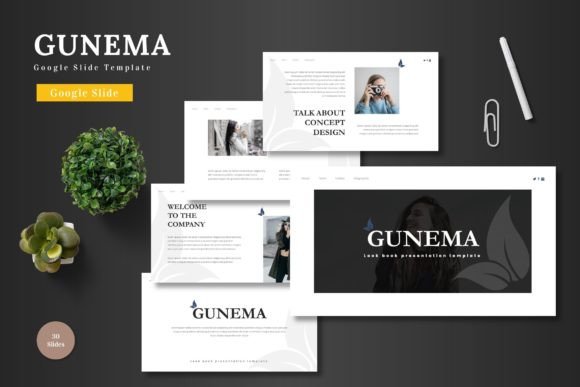
Gunema Google Slide Template: Versatile Presentations for Creators
Every presentation begins with a blank slide and a question: where do you start? The answer often determines whether your message lands with clarity or gets lost in visual noise. Gunema Google Slide Template offers a structured yet flexible foundation that removes the guesswork. Whether you are preparing a pitch deck for investors, an e-commerce catalog for clients, or a product showcase for your audience, this template provides the framework you need to focus on what matters most—your content.
Why Gunema Stands Out as a Google Slides Template
The first thing you notice about Gunema is its clean and scalable design. It does not force you into a rigid layout. Instead, it gives you 150 total slides across five premade color variations, with 30 slides per template section. This means you can build a presentation that feels cohesive without starting from scratch each time. The slide deck includes section breaks, handcrafted infographics, and pixel-perfect illustrations that remain editable inside Google Slides. No external software is required. You can drag and drop images into placeholders, change colors, and adjust text directly within the tool.
This approach matters because it respects your time. You are not learning a new application or exporting files between platforms. Everything happens inside Google Slides, which means you can collaborate with team members, share drafts, and finalize your deck without friction. The template also includes animated slides, adding a layer of polish that keeps your audience engaged without overwhelming them with motion.
Creative Applications Across Different Roles
Gunema is marketed as multipurpose, and that description holds up when you examine how different professionals can use it. The template is not tied to a single industry or presentation style. Its flexibility comes from the way the slides are organized and the variety of layouts included.
For Business Pitches and Pitch Decks
If you are an entrepreneur or startup founder, your pitch deck needs to tell a story quickly. Investors see dozens of presentations, so yours must be clear, visually consistent, and easy to follow. Gunema gives you section breaks that help you separate your problem statement, solution, market size, traction, and team slides without visual clutter. The five color variations let you choose a palette that aligns with your brand, while the infographics allow you to present data in a way that is scannable rather than dense. You can replace placeholder images with your product shots or team photos, and the drag-drop functionality keeps the process fast.
One practical recommendation is to use one color scheme for the entire deck and stick to it. This creates a cohesive visual identity that feels intentional. Avoid mixing multiple color variations within the same presentation unless you are using them to differentiate major sections.
For E-commerce and Product Promotion
E-commerce presentations often require a balance between product imagery and supporting information. You might be presenting a new collection to retailers, showcasing seasonal items to a buying team, or preparing a catalog for your online store. Gunema includes gallery and portfolio slides that are designed for exactly this purpose. The picture placeholders are sized and positioned to let your product images take center stage, while supporting text can be added without competing for attention.
For product promotion, consider using the animated slides to introduce new items. A subtle fade or slide transition can draw attention to a product without feeling gimmicky. Keep the animations simple and purposeful. The goal is to guide the viewer’s eye, not to distract them.
For Marketers and Content Creators
Marketers often need to repurpose the same content across different formats. A slide deck might become a webinar, a social media carousel, or a PDF download. Gunema works well in this context because the slides are clean and self-contained. You can export individual slides as images for social posts or convert the entire deck into a PDF for email distribution. The editable shapes mean you can tweak colors and fonts to match a campaign without having to rebuild the layout.
Content creators can also use Gunema for portfolio reviews, client proposals, or educational content. The template is not overly branded, so it adapts to your personal style rather than imposing one. If you teach workshops or create tutorials, the section breaks help you organize modules logically, and the infographics can simplify complex ideas for your audience.
Practical Guidance for Getting the Most Out of Gunema
Having 150 slides at your disposal is useful, but only if you use them intentionally. Here are some practical ways to maintain clarity and consistency as you work with the template.
Start with a Structure
Before you open the template, outline your presentation. List the key sections and decide how many slides each section needs. This prevents you from adding slides just because they are available. Once you have a structure, select the slides that match each section. The premade color variations can help you differentiate sections without breaking visual flow. For example, use one color for the introduction, another for the main content, and a third for the conclusion. This works particularly well for longer decks where viewers need orientation cues.
Edit Within Google Slides
One of the strengths of Gunema is that it is fully editable inside Google Slides. You do not need Illustrator, Photoshop, or PowerPoint. This lowers the barrier to entry and makes it easier to iterate. Change colors by selecting a shape and applying a new fill. Replace text by clicking directly into the placeholder. Swap images by dragging a new file onto the placeholder area. The template is built on master slides, so changes to the master will propagate across all slides that use that layout. This is especially useful if you decide to update your brand colors midway through the project.
Use Infographics to Simplify Data
The handcrafted infographics in Gunema are designed to present information visually. Instead of listing statistics in bullet points, use the infographic layouts to show comparisons, timelines, or percentages. This makes your data more memorable and reduces the cognitive load on your audience. When you use infographics, keep the labels short and consistent. Avoid adding too many data points on a single slide. One clear insight per slide is more effective than a crowded chart.
Maintain Visual Consistency
Consistency is what separates a professional presentation from a hastily assembled one. Stick to the same font family throughout your deck. Use the color palette from your chosen variation without introducing unrelated colors. Align elements across slides so that text, images, and graphics sit in predictable positions. This creates a rhythm that makes your presentation easier to follow. If you are collaborating with others, share the color codes and font names so that everyone is working from the same guidelines.
Adapting Gunema for Different Audiences and Platforms
Not every presentation is delivered from a podium. Some are viewed on a laptop, others on a phone, and some are shared as PDFs. Gunema is designed for widescreen format, which works well for most modern screens. However, you should still test your slides on the device your audience will use. If you are sharing a deck via email, consider exporting it as a PDF to preserve layout and fonts. If you are presenting live, check that your images and animations render correctly on the projector or screen.
For virtual presentations, keep your slides less text-heavy. The clean design of Gunema helps with this, but you still need to be mindful of how much information fits on each slide. Use the notes section in Google Slides to add speaking points that only you can see. This keeps your slides visually clean while ensuring you do not forget important details.
For social media, you can extract individual slides as images. A well-designed slide from Gunema can double as an Instagram post or a LinkedIn carousel card. The gallery and portfolio layouts are especially suited for this because they emphasize visuals. Just remove any navigation elements or slide numbers before posting.
Keeping Your Presentation Original and Audience-Friendly
A template is a starting point, not a finished product. To make your presentation feel original, customize the template to reflect your voice. Swap the placeholder photos with your own images. Adjust the color scheme to match your brand or the mood of your content. Rewrite the sample text so that it sounds like you, not like a generic corporate script. The template gives you structure, but your content gives it personality.
Consider your audience at every stage. A pitch deck for investors needs to be concise and data-driven. A product presentation for customers should focus on benefits and visual appeal. An internal training deck can afford to be more detailed because the audience is already motivated to learn. Gunema adapts to all of these scenarios because its layouts are neutral enough to support different tones and purposes.
Finally, respect your own time. One of the reasons to use a template is to reduce the hours spent on layout and formatting. Do not overthink the design. Choose a color variation, fill in your content, replace the images, and then step back. If the slides communicate your message clearly and look professional, you are done. The template exists to speed up your workflow, not to add another layer of decisions.
Gunema Google Slide Template gives you the raw materials for a polished presentation. What you build with it depends on your message, your audience, and the story you want to tell. Use the structure wisely, customize it thoughtfully, and present your work with confidence. That combination is what makes a presentation memorable, and it is well within reach when you start with a solid foundation.